입력 이벤트는 setOnClickListener 함수로 구현한다. 예를 들어, 내가 회원가입 페이지를 만들고 싶다고 가정하자.
회원가입 페이지는 간단하게 다음과 같이 구성하였다.
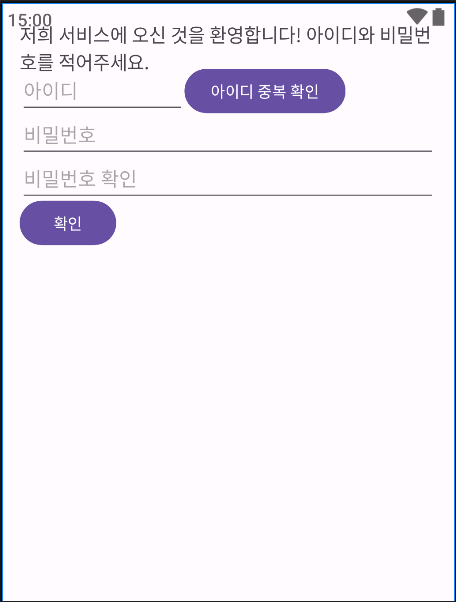
아이디 중복 확인 버튼과 확인 버튼을 구현했다. 확인 버튼을 눌렀을 때, 모든 정보가 올바르게 기입되어 있다면 처음 로그인 페이지로 돌아간다.
일단 이 화면 자체의 코드는 다음과 같이 구현했다.
<?xml version="1.0" encoding="utf-8"?>
<RelativeLayout xmlns:android="http://schemas.android.com/apk/res/android"
    xmlns:app="http://schemas.android.com/apk/res-auto"
    xmlns:tools="http://schemas.android.com/tools"
    android:layout_width="match_parent"
    android:layout_height="match_parent"
    tools:context=".MainActivity"
    android:orientation="vertical"
    android:padding="16dp">

    <TextView
        android:layout_width="match_parent"
        android:layout_height="wrap_content"
        android:text="@string/register"
        android:textSize="17dp" />

    <EditText
        android:id="@+id/id"
        android:layout_width="151dp"
        android:layout_height="wrap_content"
        android:layout_marginTop="40dp"
        android:hint="아이디"
        android:textColor="#CFCFCE" />
    <Button
        android:id="@+id/register_id_repeat"
        android:layout_width="wrap_content"
        android:layout_height="wrap_content"
        android:layout_marginTop = "40dp"
        android:layout_marginLeft = "150dp"
        android:text="아이디 중복 확인" />
    <EditText
        android:layout_width="match_parent"
        android:layout_height="wrap_content"
        android:id="@+id/password"
        android:layout_marginTop="80dp"
        android:hint="비밀번호"
        android:inputType="textPassword" />
    <EditText
        android:layout_width="match_parent"
        android:layout_height="wrap_content"
        android:id="@+id/password_check"
        android:layout_marginTop="120dp"
        android:hint="비밀번호 확인"
        android:inputType="textPassword" />

    <Button
        android:id="@+id/register_click"
        android:layout_width="wrap_content"
        android:layout_height="wrap_content"
        android:layout_marginTop="160dp"
        android:text="확인" />

</RelativeLayout>RelativeLayout으로 각 요소들이 자유롭게 배치될 수 있도록 했다. LinearLayout은 선형적으로 배치가 되어서 내가 원하는 화면을 만들기에는 어려웠다.
그 후, 이 xml 파일에 맞는 코틀린 파일에서 다음과 같이 코드를 짜주었다.
package com.example.again

import android.os.Bundle
import androidx.activity.enableEdgeToEdge
import androidx.appcompat.app.AppCompatActivity
import androidx.core.view.ViewCompat
import androidx.core.view.WindowInsetsCompat
import android.view.View
import android.widget.Toast
import android.widget.Button
import android.widget.EditText
import android.widget.TextView
import android.content.Intent

class subActivity : AppCompatActivity() {
    var id_list = MainActivity().id_list
    var pw_list = MainActivity().pw_list
    override fun onCreate(savedInstanceState: Bundle?) {
        super.onCreate(savedInstanceState)
        setContentView(R.layout.activity_sub2)
        var id = ""
        var password = ""
        val register_id_repeat = findViewById<Button>(R.id.register_id_repeat)
        val register_click = findViewById<Button>(R.id.register_click)
        var id_checked = false
        register_id_repeat.setOnClickListener{
            id = findViewById<EditText>(R.id.id).text.toString()
            var Find = id_list.indexOf(id)
            if (id == ""){
                Toast.makeText(this, this.getString(R.string.input_id), Toast.LENGTH_SHORT).show()
            }
            else if (Find >= 0) {
                Toast.makeText(this, this.getString(R.string.is_id_duplicated), Toast.LENGTH_SHORT).show()
            }
            else {
                Toast.makeText(this, this.getString(R.string.useable_id), Toast.LENGTH_SHORT).show()
                id_checked = true
            }
        }
        register_click.setOnClickListener{
            if (id_checked == false){
                Toast.makeText(this,this.getString(R.string.check_id), Toast.LENGTH_SHORT).show()
            }
            else {
                password = findViewById<EditText>(R.id.password).text.toString()
                var password_check = findViewById<EditText>(R.id.password_check).text.toString()
                if (password == "") {
                    Toast.makeText(this, this.getString(R.string.input_password), Toast.LENGTH_SHORT).show()
                } else if (password_check == "") {
                    Toast.makeText(this, this.getString(R.string.check_password), Toast.LENGTH_SHORT).show()
                } else if (password != password_check) {
                    Toast.makeText(this, this.getString(R.string.password_match_false), Toast.LENGTH_SHORT)
                        .show()
                } else {
                    id_list.add(id)
                    pw_list.add(password)
                    Toast.makeText(this, "회원가입에 성공하였습니다.", Toast.LENGTH_SHORT).show()
                    Thread.sleep(500)
                    val intent = Intent(this, MainActivity::class.java)
                    startActivity(intent)
                }
            }
        }
    }


}
setOnClickListener 함수를 통해서 버튼 이벤트를 간편하게 구성할 수 있으며, 다른 액티비티에 있는 리스트 요소에 값을 간편하게 넣을 수도 있다.
Toast 함수로 각 버튼이 눌려질 때마다 간단한 알림 창이 뜨도록 했으며, 모든 정보들이 다 맞게 기입되었다면 회원가입에 성공했다는 알림 창을 띄우고, 잠시 지연을 준 뒤에 Intent 모듈을 이용해서 처음 액티비티로 돌아갈 수 있게 구현했다.
'기타 지식들 > 개발 관련' 카테고리의 다른 글
| Android studio를 Firebase와 연동해서 실시간 채팅 어플 구현하기 (0) | 2025.03.02 |
|---|---|
| Kotlin으로 SQLite 활용해서 회원가입 페이지 간단하게 구현하기 (1) | 2025.02.24 |
| Nox 앱 플레이어와 연계해서 frida 설치하기 (0) | 2025.02.23 |

